DrawMark
Paste an image, point with arrows and text, then copy or download it.
What friction it removes
Explaining "the button in the top right" in words makes the other person search the screen for it. What one arrow could say turns into several messages.
Opening a heavy image editor just to mark up a screenshot or photo is a chore, and an annotation tool that stopped getting updates makes it worse.
So it comes down to three steps: paste, point, send.
What it does
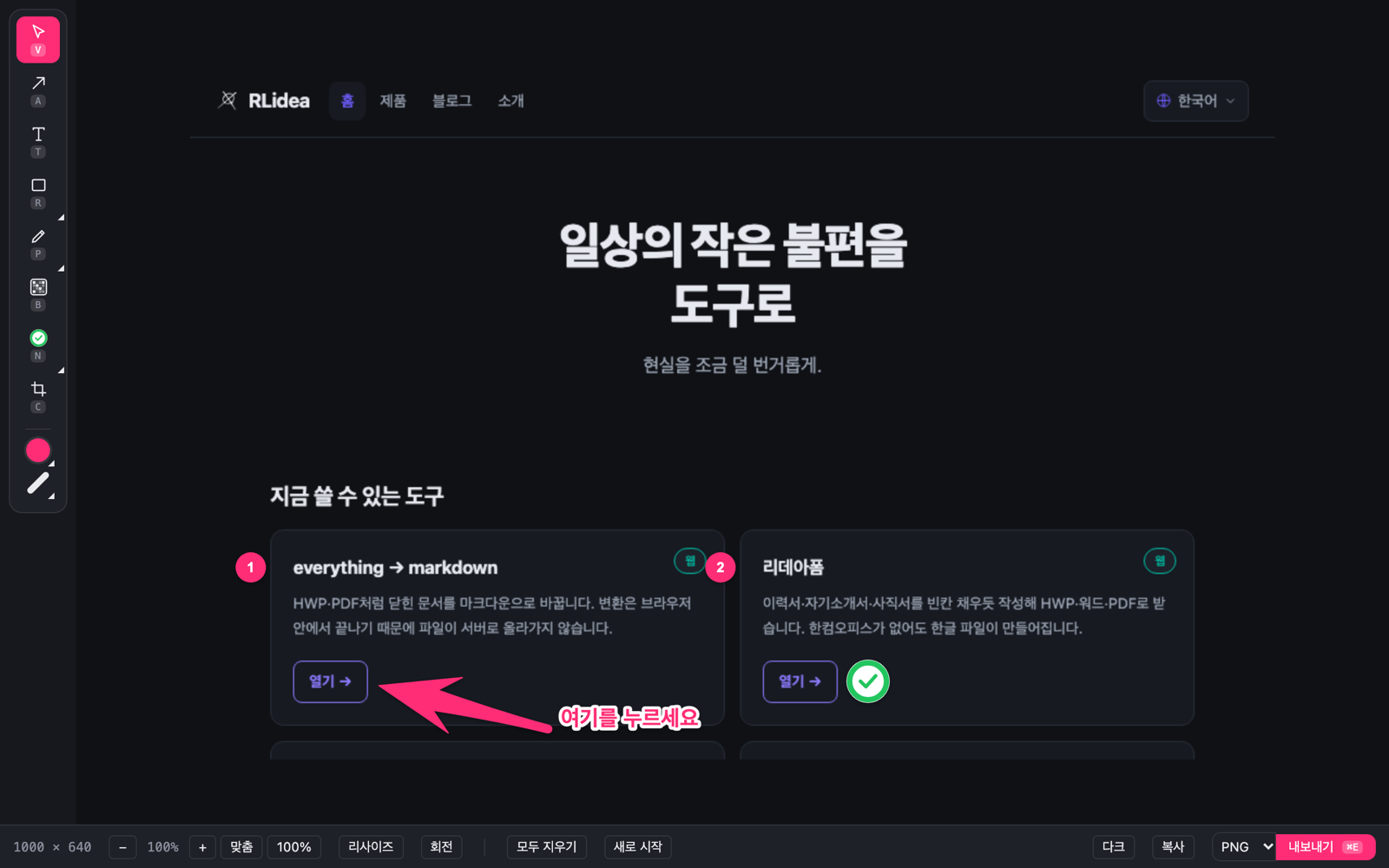
Arrows and text
Arrows with a thin tail and a bold head, text with a white outline. Both stay readable on light and dark screens.
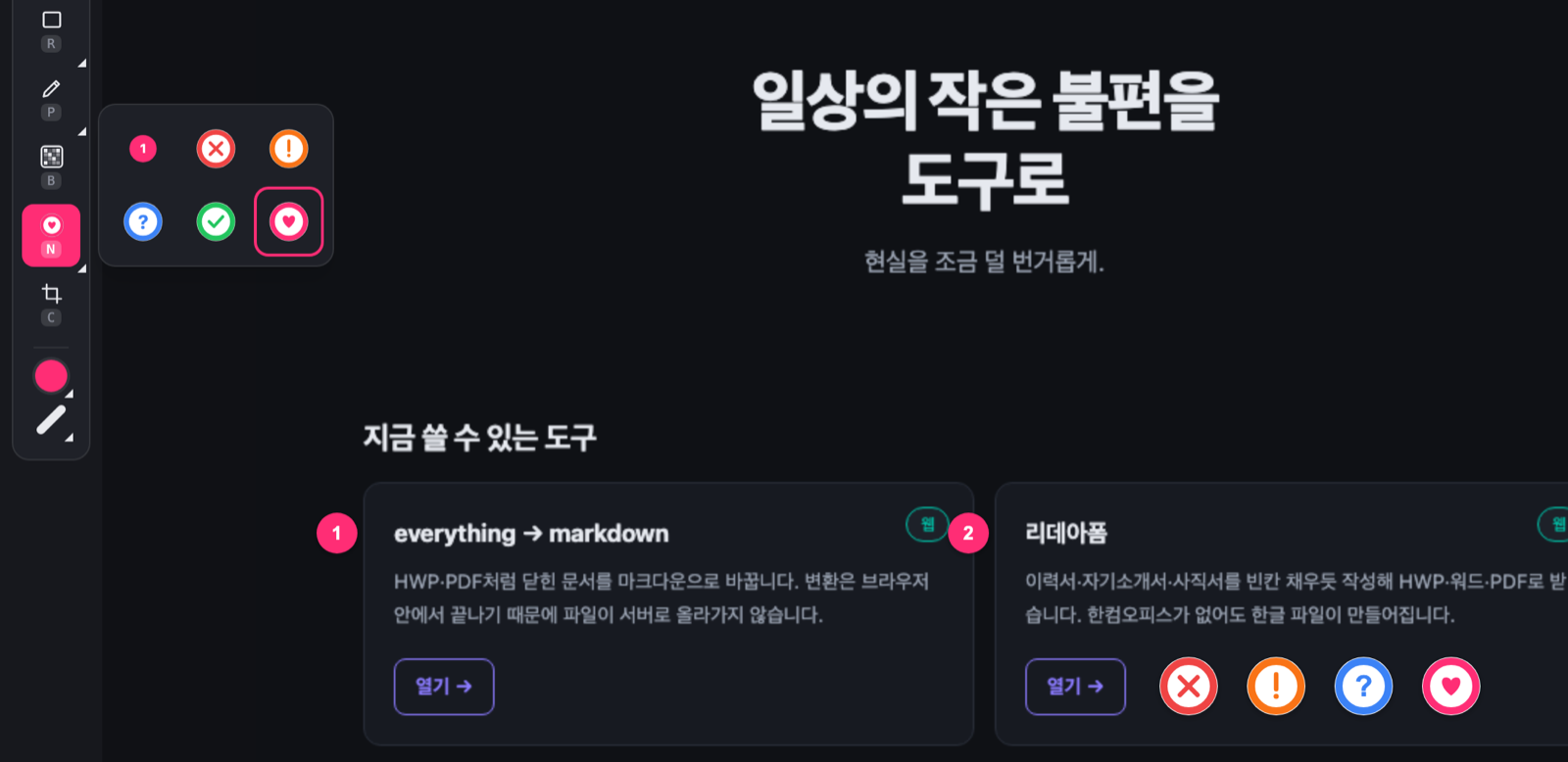
Numbers and symbol stamps
Numbers for steps, plus ✗ · ! · ? · ✓ · ♥. Symbols stamp in the colour that fits their meaning, and the colour can be changed afterwards.
Pixelate
Hide names, contacts and numbers that should not be shown.
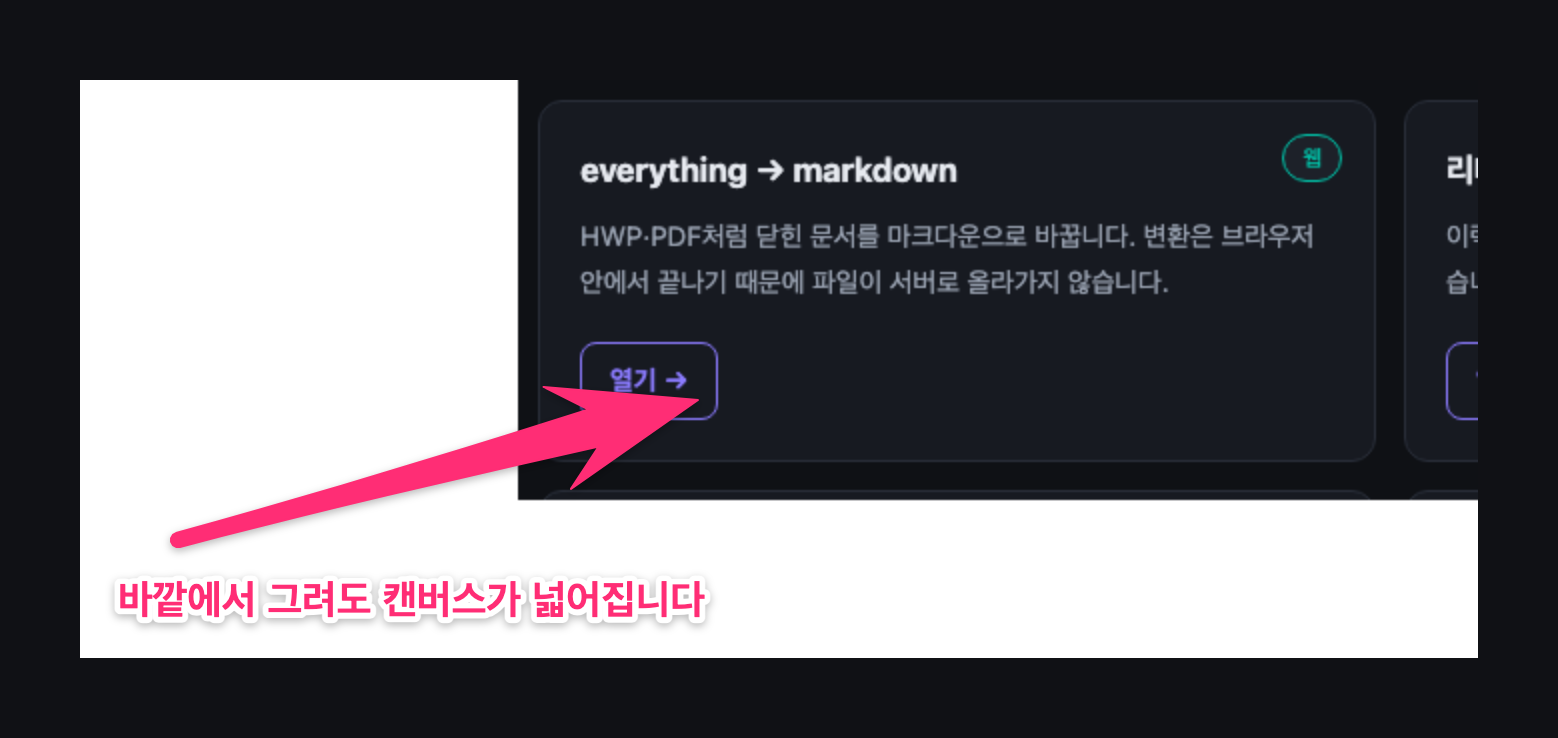
A canvas that grows
Start an arrow outside the image or let the text run long, and the canvas grows by that much with white margin.
Fix it after drawing
Drag an arrow by its ends; resize or rotate shapes and strokes with their handles. Hold Shift to draw a perfect square or circle.
Crop · resize · rotate
Keep only the part you need, make it smaller, turn it around. Annotations move with it.
Keyboard shortcuts
One letter per tool (arrow A · text T · shape R), 1–4 for line weight, Shift+1–0 for colour.
Blank canvas
Start from a white canvas with no screenshot and explain a flow or a structure with arrows and text alone.
Pick up where you left off
Your work is kept in this browser, so you can continue after reopening it. Save anything you want to edit later as a DrawMark document (.drawmark).
AI agents use it too
An AI agent that can drive a browser uses the same screen a person does. The three screenshots on this page were made by an AI agent operating this tool directly.
How it goes
- Paste a screenshot or photo (⌘V or Ctrl+V) or drop it in. You can also start from a blank canvas.
- Point with arrows, text and numbers. Click one again with the same tool to move or edit it.
- Copy it into a chat, or download it as PNG, JPEG or WebP.
Where does the image go
Nowhere. Drawing and exporting both happen in your browser, so the image is never sent to a server. We have no way to see what you drew.
Honest limits
- Only your last piece of work is kept, and only in this browser. To keep it longer or edit it on another device, save it as a DrawMark document (.drawmark).
- A browser cannot capture the screen. Take the screenshot with your operating system (⌘⇧4 on a Mac, Win+Shift+S on Windows) and paste it in.
- On a phone, one finger draws and two fingers zoom or move the canvas.
Frequently asked
- Do I need to install anything?
- No. It runs in the browser. A macOS app that also captures the screen directly is in the works.
- What formats can I get?
- Download as PNG, JPEG or WebP, or copy to the clipboard. The downloaded image keeps the original size. To edit it again later, save it as a DrawMark document (.drawmark).
- I drew something wrong.
- ⌘Z or Ctrl+Z undoes one step at a time. "Clear all" removes only the annotations, "Start over" closes the image too, and both can be undone the same way.
- Can I use it to show something to an AI?
- Yes. Paste a screenshot marked with arrows and numbers into an AI chat, and you do not have to spell out "where and how" in a long paragraph.
- Which languages does it support?
- Korean, English and Japanese. It follows your browser, and you can switch in the bottom bar.
- Is this the same tool as ShowNTell?
- Yes. ShowNTell was renamed DrawMark. Old links forward to the new address, and documents saved under the old name (.showntell) still open.
- Does it cost anything?
- It is free. No payment, no account.
No install, no account